
How to Group Order
1. Go to applespice.com/locations
2. Select store location
3. Click 'Order Online'
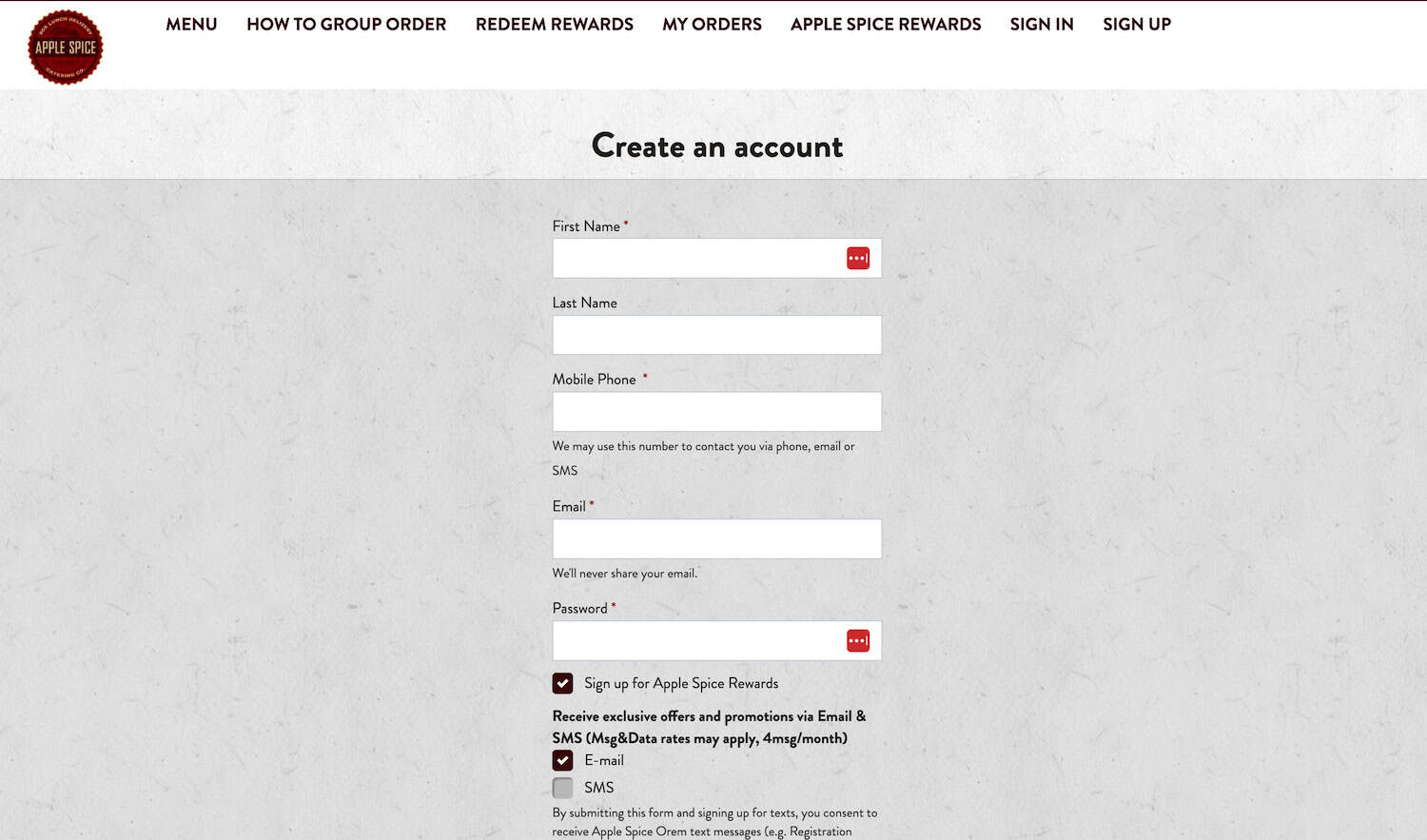
4. Click 'Sign Up'
Create an account. Sign up and verify email, and head back to the order online menu.
5. Click the 'Make it a Group Order' button and select time and day. Click start!
As administrator of the group order, you will be able to see who has ordered and who still needs to submit, once the invite has been sent.

6. Choose Expiration Date and Time, Invite Friends, and give any instructions pertaining to order.
- This is the date and time where everybody has to be done ordering, not your delivery time.
(Do not let this expiration date and time expire without placing your order or you will lose everything) - Choose whether you are paying for the order or individuals are paying for themselves.
- Add any instructions you would like your participants to follow.

7. Invite your friends
- Copy and paste this link into your own email browser to send out to others. Hit done after copying.
OR - Create your own email list from within the group order by clicking the button next to "By email".
(This is an easy way if your are inviting the same people all the time and want to make a permanent list where you can put a checkmark next to the name of who you would like to invite). - After adding all group members click on the invite button.

8. Manage your order
- To see your group information, click on the shopping cart in the top right hand corner. From here you can do a number of different things:
-
- Click on the + sign under group activity. This will expand and show you who has joined your order and who has completed their order.
- You can cancel the entire group or add
- You can see the expiration date of the group order and if you hit the 'change' button you can edit your expiration date or time
- You have access to the link that you can copy and send to invite more people to the group order.
- You can begin the check out process (if you try to check out without all members of the group being ready, it will give you a warning but will still let you check out. Basically removing them from the group).

9. Enter phone number, delivery address and continue to order details
(Your date and time of delivery are already in place from when you scheduled it at the start)

10. Add Credit Card
(You can have multiple cards saved in your wallet)
Add gratuity if you desire and then place the order.
11. Order Summary
After placing the order it will take you to the finish screen where you will see an order summary and have the ability to track your order on the day of delivery. You will receive two confirmation emails, one saying that it has been sent to the store and one saying when the store accepts the order.
Frequently Asked Questions
How do I get back into my order if I leave the website?
A: You log in and you're automatically back in your order.
Why does it have one more person showing than who I invited?
A: You are always counted in the group order as the admin. You do not have to order though. If you are not ordering, click on the "I'm done" button at the bottom.
Can I have more than 1 group order at a time?
A: No, unfortunately it will only track one at a time since it is an open order.
What if I need to remove someone from the group?
A: You can, but only do it at the end of the order in the checkout screen. From there you can modify or delete orders before paying. If they do not order, they will drop off automatically.
What if I need to delete or modify?
A: The person ordering can modify themselves by changing the "ready" button to "not ready" and this allows you to change the order. As administrator you can modify all participants at the end during the checkout process if needed. Another option is to place the order and call the store to delete or modify participants.
What if I need to change my payment method?
A: After placing the order, it has left your hands and the only way to modify anything is to call the store and they will be able to make any changes you need.
What if I forgot my username or password?
A: Follow the prompts in the system to reset your username or password. If you don't receive the email, please cehck your junk or spam folder.
What if I want to change the date and time of my delivery?
A: You can modify your date and time of delivery during the checkout process. You will be taken to a screen where that information can be modified.